This blog post was published on Tuesday, May 12, 2026.
You’re plugging away at an MQ when a notification pops up on your screen. It’s a message from your manager.
“Can you give me a recap of what analysts have told us recently about our competitors? Need it for a meeting tomorrow with Sales leadership.”
Hmm. Well, you can’t afford to fall behind on the MQ. But, at the same time, it’s a fair enough request from your manager. Guess it’s going to be a late night …
Unless!
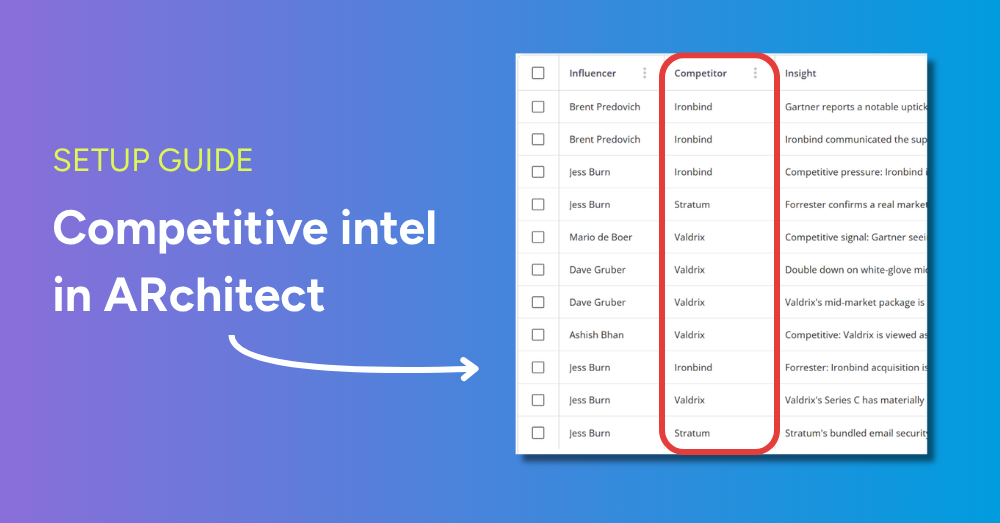
Unless, that is, you’re taking advantage of custom insight fields and saved views in ARchitect. Because, in that case, it will take you just two clicks to surface the exact set of insights your manager is requesting.
To see how these features work in ARchitect, watch the tutorial below (clipped from our May 2026 webinar). Then, when you’re ready to have competitive intel at your fingertips in ARchitect, follow the setup instructions beneath the tutorial.
How to capture competitive intelligence in ARchitect using a custom insight field
Note: These steps are demonstrated in the tutorial video above.
- In the top menu, navigate to Site > Site Admin > Insight Configuration.
- Select Custom Fields.
- Click the Add Field button.
- Select Dropdown from the menu of options.
- Make “Competitor” the title of the field.
- Add each of your competitors as an item in the list.
- Decide which insight categories the Competitor field should appear on. If you’re unsure, simply click Select All.
- In the upper right corner of your screen, click Save. And, with that, you’re done! Going forward, you’ll be able to attach competitors to the insights you log in ARchitect.
How to keep competitive intelligence at your fingertips in ARchitect using a saved view
Note: These steps are demonstrated in the tutorial video above.
- In the top menu, navigate to Insights > All Insights.
- In the upper left corner of your screen, click the Add Filters button.
- In the category field, select Competitor. In the operator field, select “Is one of.” And in the value field, select your competitors.
- Click the Apply button.
- In the upper right corner of your screen, click the Views button.
- Click Save.
- In the modal that pops up, give your saved view a name and a color, and then click the Save button. And, with that, you’re done! Whenever you need to access the competitive intel you’ve logged in ARchitect, all you need to do is navigate to your saved view.
Learn more about what ARchitect can do for you
Request a demo and a member of our team will reach out to get time on the calendar.