This blog post was originally published on Tuesday, April 21, 2026. Last updated on Tuesday, April 21, 2026.
Clear, timely communication is critical to the success of an analyst summit. It’s one of the major reasons you either hit or miss your attendance goal; it’s what makes the difference between prepared attendees and unprepared attendees; and it’s what enables you to get actionable attendee feedback.
When it comes to getting the right information (and calls to action) in front of the right analysts at the right time—and keeping a close eye on who views what—there’s no better tool than AR Connect. Which is why we recommend applying it to your analyst summit process.
Below is a quick, tactical guide to using AR Connect to promote and execute your next analyst summit.
But before we dive in, some essential concepts to understand (visual guides appear beneath descriptions):
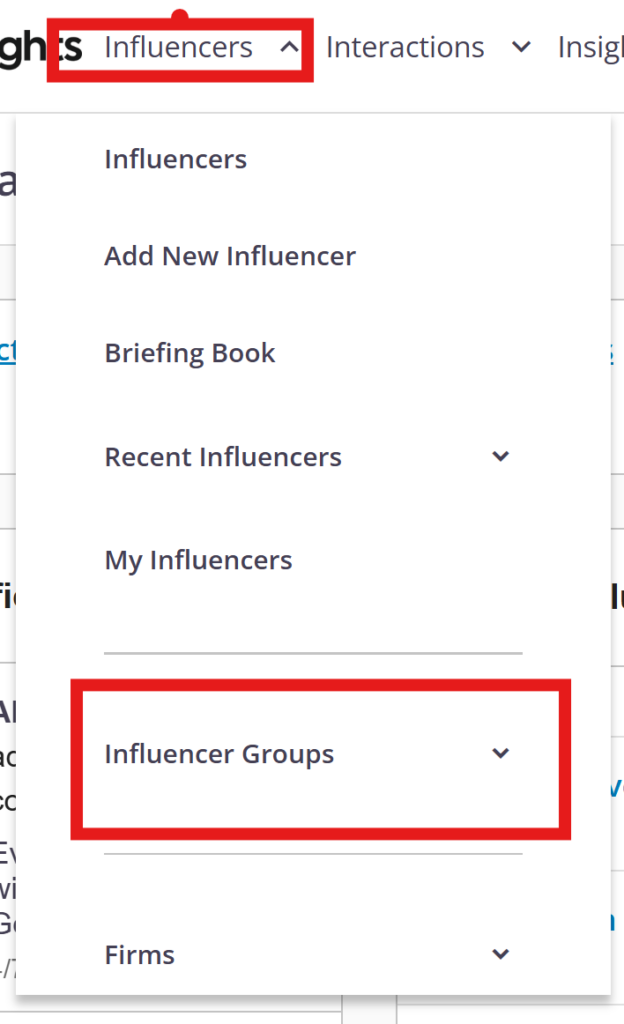
➡️ Influencer Group: This is something you create in ARchitect (in the top menu, navigate to Influencers > Influencer Groups). When you publish a post on AR Connect, you have the option of limiting its visibility to specific groups—very important when it comes to an analyst summit!
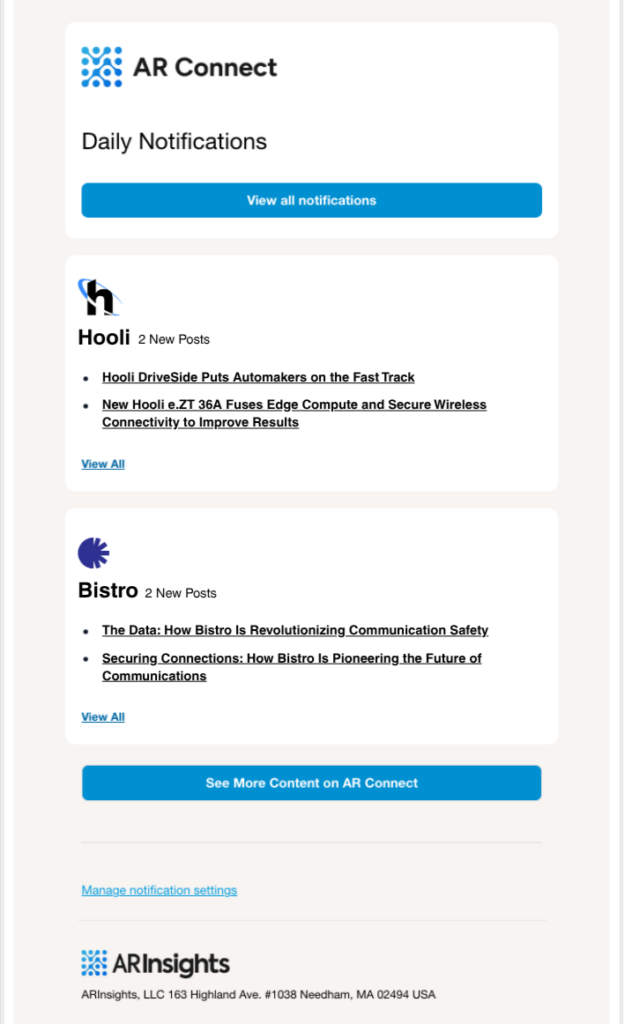
➡️ AR Connect notifications: When you publish a post on AR Connect, every analyst to whom it’s visible will get a real-time notification in the app. They’ll also see it in their next AR Connect daily digest email.
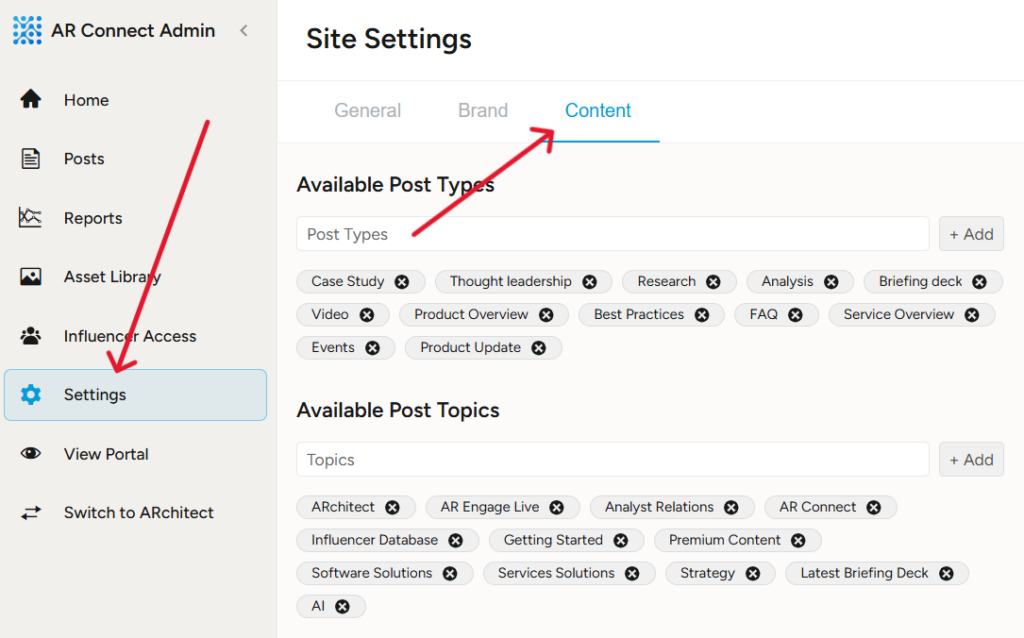
➡️ AR Connect post types and topics: A best practice when creating a post is to specify its type (e.g., case study) and the topics it covers (e.g., artificial intelligence). This makes it easy for analysts visiting your portal to find what they need. Define your types and topics by navigating to Settings > Content.
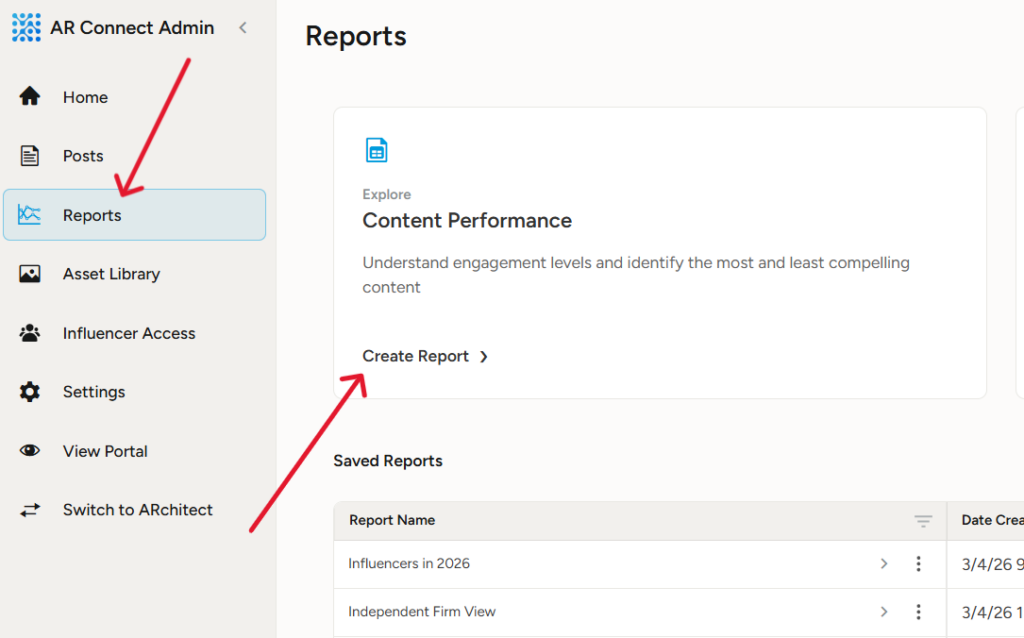
➡️ AR Connect post analytics: For each post you publish, you can see who viewed it, when they viewed it, and how they interacted with it (bookmarked it, downloaded an attached file, etc.). Navigate to Reports > Content Performance Report > the post you want to review.
What to do at least 6 months before your analyst summit
First, in ARchitect, create an Influencer Group of the analysts you want to invite to your summit. Label it something like “Invitees – 2026 Analyst Summit.”
Then, publish a save the date post on AR Connect with visibility limited to the invitees group you created. Again, your invitees will get a real-time notification in AR Connect, and they’ll also see the post in their next AR Connect daily digest email. No one outside of your invitees group will see the post or receive a notification about it.
💡 Important: When setting up your save the date post—and all subsequent posts related to your summit—use the topics field to tag it as “2026 Analyst Summit” or something similar. This is a small detail that will make a big difference in terms of ease of use/navigation for your analysts.
A week after publishing the save the date, review the post’s analytics to see which of your invitees have viewed it. If anyone hasn’t viewed it, send them an email with the information.
What to do in the lead-up to your analyst summit
Create an Influencer Group of the analysts who’ve confirmed they will attend. Label it something like “Attendees – 2026 Analyst Summit.”
As soon as you can, publish a post with visibility limited to attendees with important “know before you go”-type information such as:
➡️ A high-level agenda (meaning it doesn’t necessarily need to include all the details of all the sessions)
➡️ A floor map of the venue
➡️ Who to contact in case of certain issues
➡️ Hashtags to use on social (if your summit is part of your company’s larger corporate event)
Later, after doing your pre-summit briefing with attendees, publish a post with the recording and a copy of the slide deck. This is also a great time to schedule a post for the end of the summit with a link to a survey where attendees can provide feedback. The fresher the summit is in their minds, the better and more actionable their feedback will be—so take advantage of the scheduling feature.
And remember to set the topic for all these posts!
What to do after your analyst summit
For each session that was recorded and that you’re allowed to distribute, create a post. Upload the recording as the Feature Video and the slide deck as an attachment. Use a transcript of the recording and your favorite AI tool to draft a session recap geared specifically towards your analyst audience—this is the unique value-add that gives them a reason to visit AR Connect rather than searching for the recording on YouTube or your corporate website.
What to do right now
If you’re an AR Connect user and you’d like additional guidance on applying the tool to your analyst summit process, contact your account manager—they’re here to help.
If you’re not an AR Connect user and you’d like to take a tour, schedule a demo and a member of our team will reach out.