If you’re reading this, I assume you plan to join us at The Charles Hotel in Harvard Square for AR Engage Live 2026—good decision! Between the presentations, the fireside chats, and the many chances to connect, it’s going to be two fantastic days back at a fan-favorite venue.

Being in the same room as 150+ AR pros is a special experience—not something any of us get to do very often. So, let’s make the most of it! To do that, we’re going to use Whova, a free app that lets you build your personal schedule, join contests, and, most importantly, connect with other attendees.  For those of you who attended last year, you should be very familiar with the app.

➡️ NOTE: For clarity, all instructions provided below are accompanied by screenshots of the Whova interface.

Download the Whova app

The Whova app is free to download. Open the App Store or Google Play on your mobile device and search for “Whova.” When you find it, tap to download and install the app. 


App store listing for the Whova event app, showing screenshots of its features and interface.

Sign in to Whova

Follow these steps:

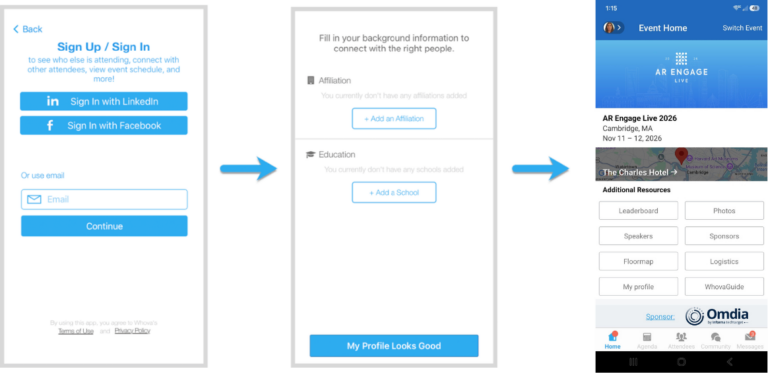
  1. Make sure to sign in with the email address you used when registering for the event. (If you can’t remember which email address you used, it’s the one that received a registration confirmation email from the sender Whova Team with the subject line “AR Engage Live – Registration confirmation.”)
  2. Create a password and type in your name.
  3. Edit your profile. Other attendees will use this to network with you if you choose to be included in the attendee list (which I strongly recommend!).
  4. The app will take you to the conference home page automatically.
Whova Sign In flow

View the agenda and plan your schedule

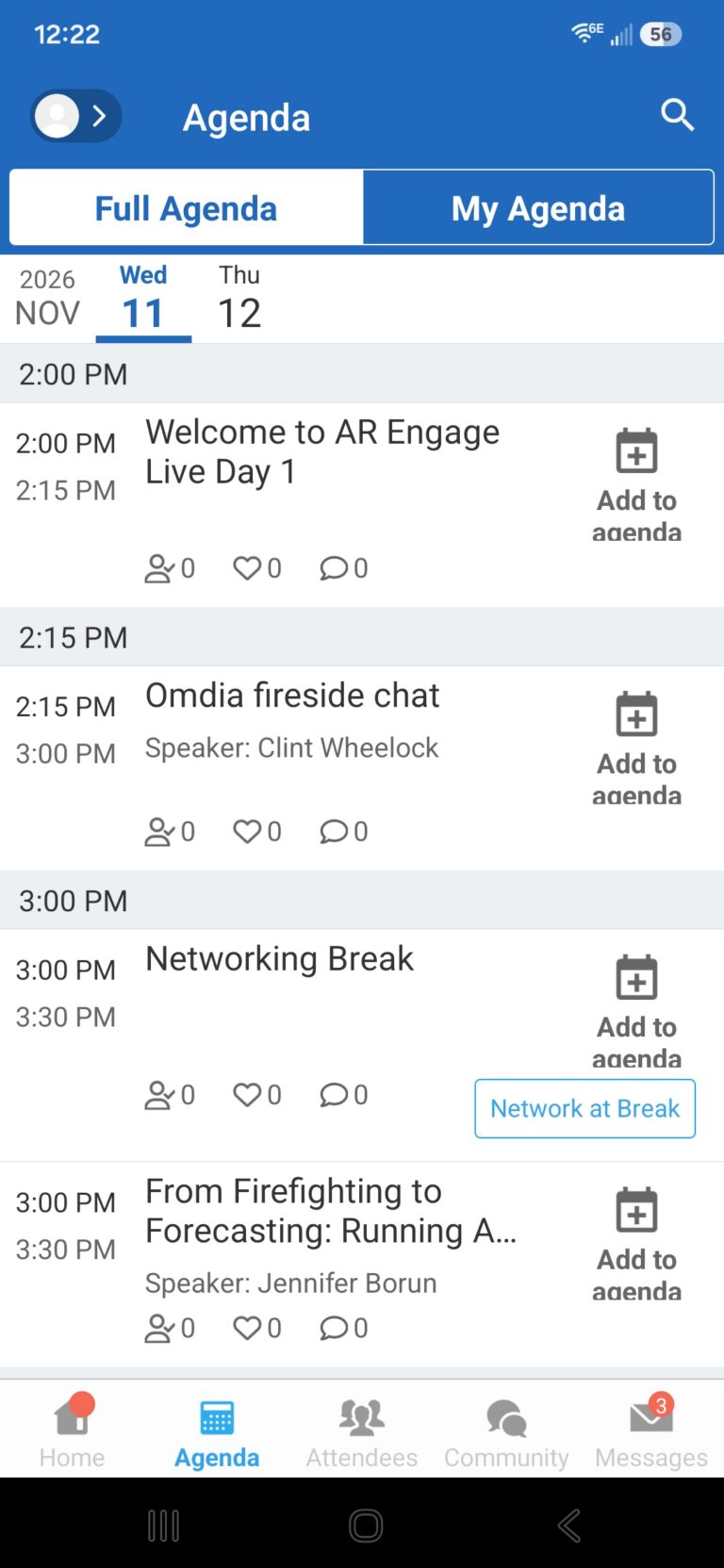
Find the Agenda tab at the bottom of the screen. You’ll see a list of sessions for that day. To move between days, select the date you want on the calendar at the top of the agenda.

Browse sessions, or search for specific keywords using the bar at the top of the screen. Once you find a session you’re interested in, tap on it. If the session hasn’t happened yet, tap “Add to My Agenda” to put it on your personal schedule and set a reminder.

Whova Agenda

Network—before and during AR Engage Live

When you sign in for the first time, you will be asked: “Would you like to network with other attendees by listing yourself in the attendee list?”

  • If you answer yes (recommended) – you will be able to view the Attendees tab and will be included in the attendees list.
  • If you answer no – you will not be able to view the Attendees tab and will not be included in the attendees list.

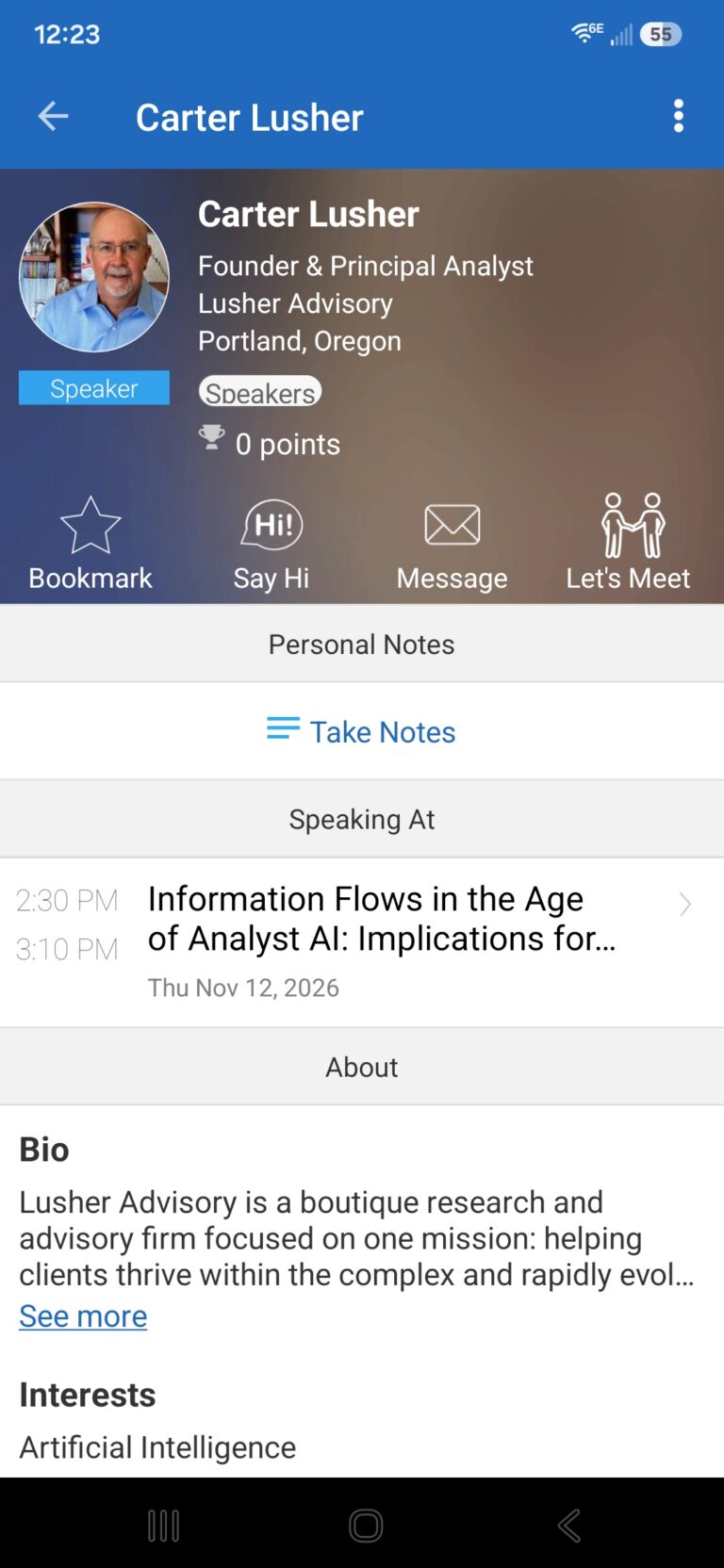
To view other attendees: Tap the Attendees tab at the bottom of the screen. At the top of the page, you can search by keywords such as company, name, or title. In each professional profile, you can take notes or request contact information.

To find people with common backgrounds and interests: Tap the Recommended tab at the top of the Attendees list to see Whova’s suggestions for people you may want to meet. Tap into each item to find attendees from the same city or with the same affiliations, educational background, or interests.

Say “Hi” with one tap, or start a private chat by tapping the Message button. You can turn it into a private group chat by inviting more people.

Whova Attendee

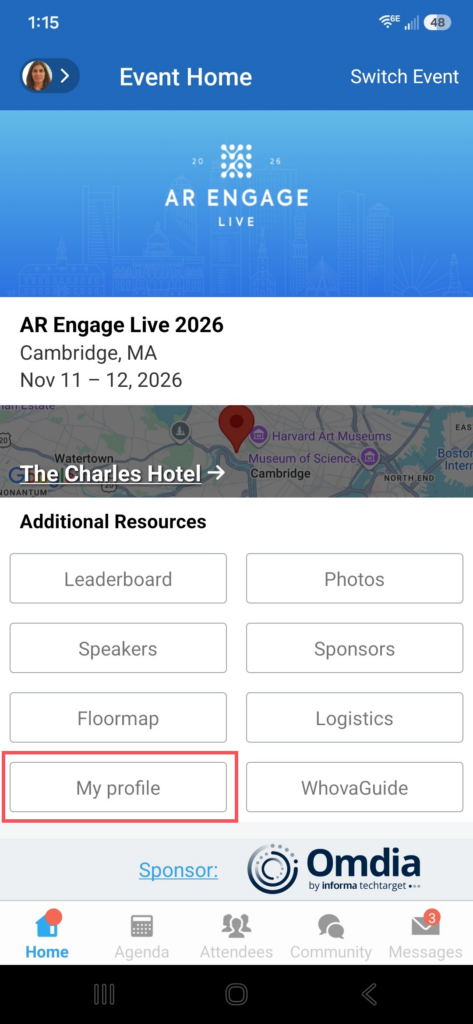
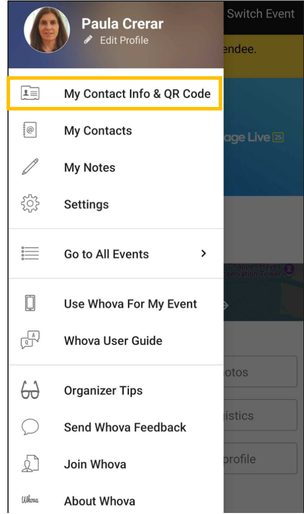
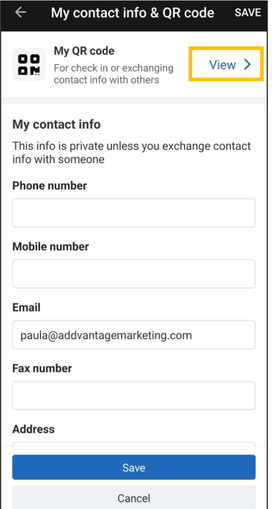
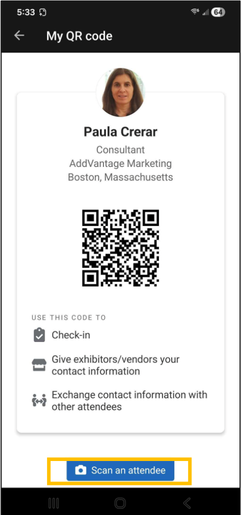
To exchange contact information on site: Scan QR codes. From the Home page, tap My Profile, then My Contact Info and QR Code, then View. You’ll see your QR code, plus a button at the bottom of the screen to scan other attendees’ codes.

Whova My Profile
Select My Contacts Info and QR Code
Select view QR code
QR Code view

Connect, engage, and win prizes!

During AR Engage Live, use the app to engage with your peers, provide survey feedback, and participate in contests to earn points on the Leaderboard and potentially win a prize!

Leaderboard Contest:

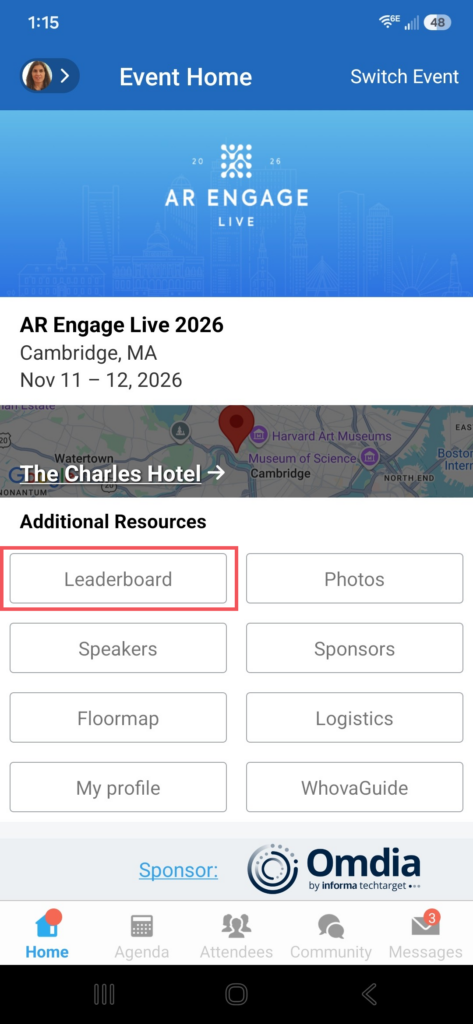
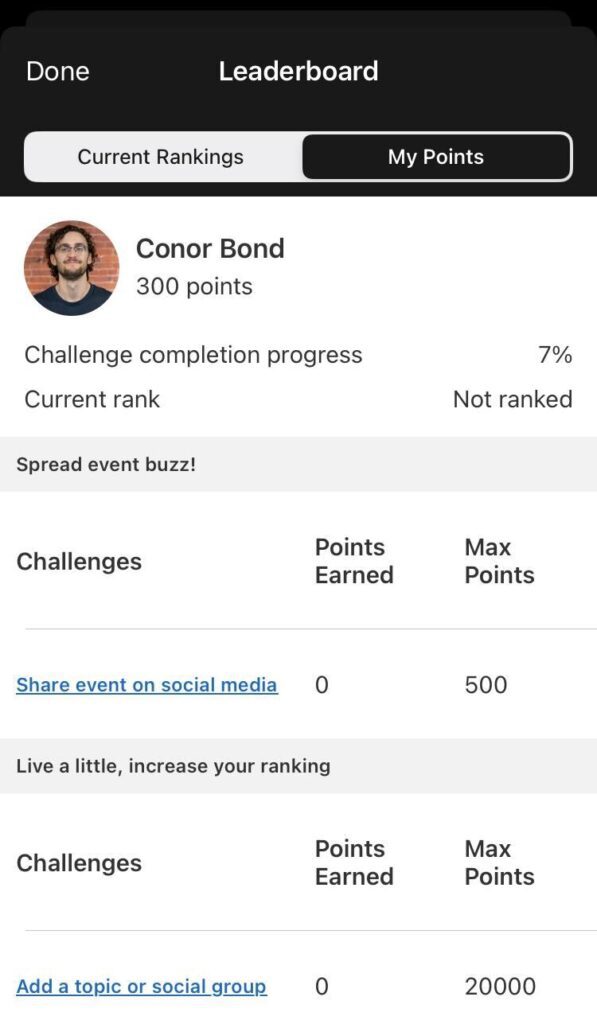
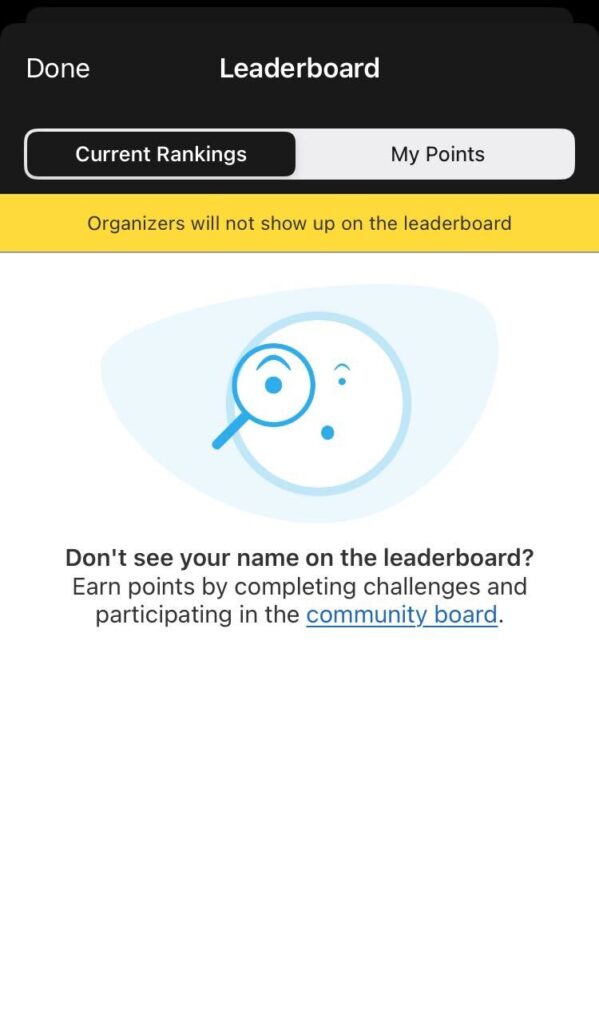
From the app Home page, click on the Leaderboard button. Then, at the top of the screen, click on My Points to see all the challenges to complete to earn points. Check your rankings by clicking on the Current Rankings button. 

At the end of the event, we’ll announce the top three Leaders and award prizes.

Whova Leaderboard
A mobile app leaderboard screen showing Conor Bond's profile with 300 points and a list of available challenges.
A mobile app screen showing a "Leaderboard" page with instructions on how to earn points and appear on the rankings.

Photo Contest:

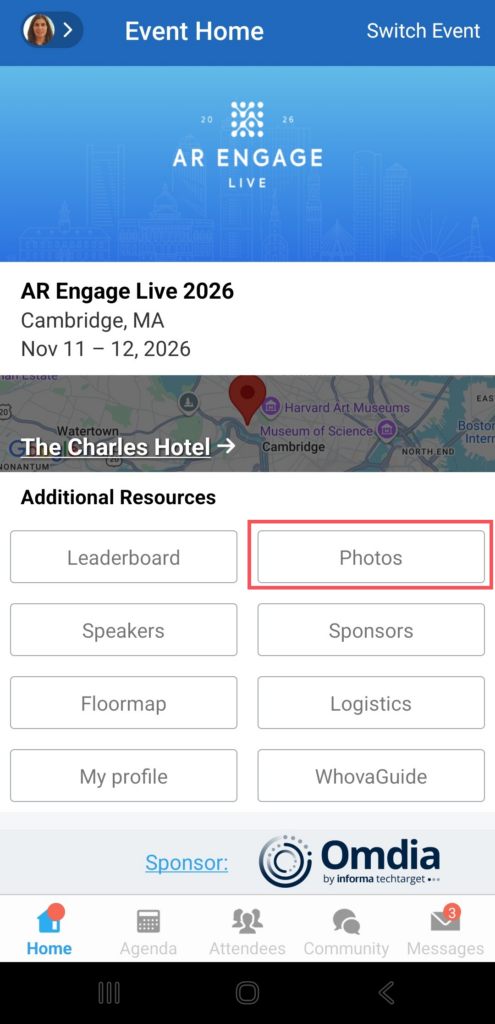
From the app Home page, tap the Photos button.

Take or upload a photo or video (make sure it’s your own original work!). This year’s contest theme is “networking at AR Engage Live.”

Encourage your colleagues to like your photos, and be sure to like their best shots too. Every like counts toward the final score. Three prizes go to the photos with the most likes at the end of the event.

Good luck and have fun!

Whova Photos

Any questions?

Send me an email at ltaylor@arinsights.com. See you in Boston!